
Everyday saves
How to Save Links in One Place and Find Them Later
A simple way to keep useful links together, give them names you remember, and find or share them again. A practical walkthrough with CatchIt.
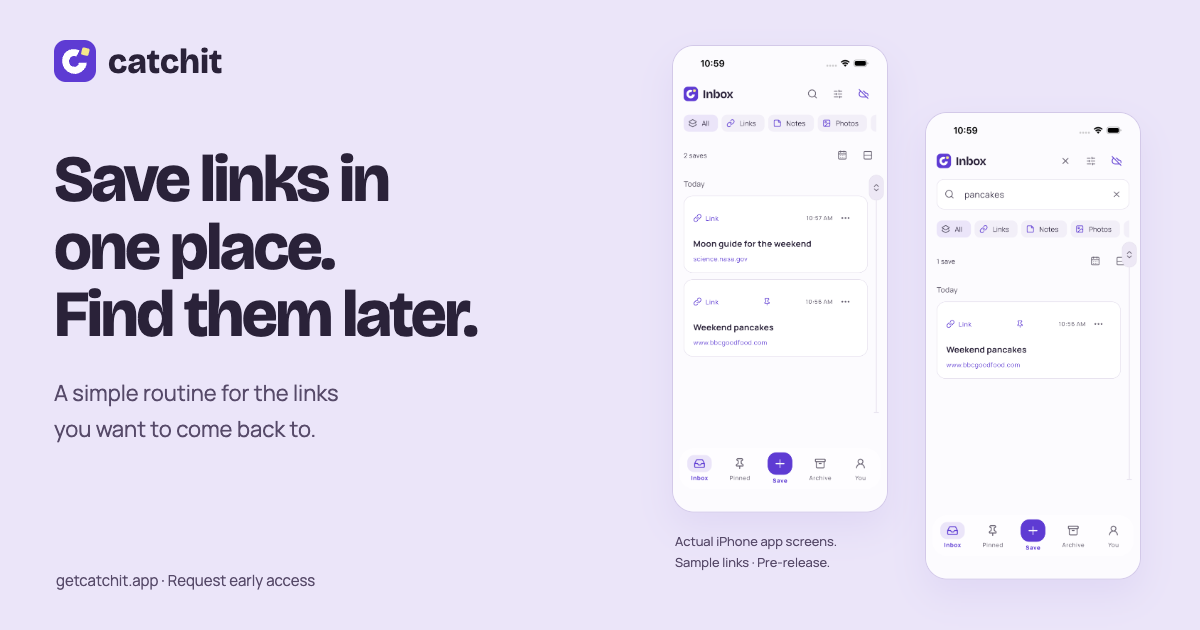
You remember the recipe. You remember sending it to yourself. What you don’t remember is whether it’s in WhatsApp, a note, or a browser tab you meant to keep open.
That small search can turn into opening three apps and scrolling through each one. I ran into the same problem with links I needed to send repeatedly. It’s part of why I started building CatchIt.
A useful saving habit needs two things: a consistent place to put a link, and an easy way to recognize it later. Here’s a small routine you can use without building a folder system.
1. Choose one place for the links you want back
Start with your next useful link. A recipe for the weekend, a guide someone recommended, or a reference you share at work. Pick one place to keep these links and use it consistently.
You don’t have to move every old bookmark first. Bring an older link over when you need it again. That gives you a useful collection without turning the first day into a cleanup project.
CatchIt is the place I’m building for this habit. You choose what to save; it doesn’t automatically import your chats, notes, or bookmarks. The examples below use public links in a small guest library.
2. Save the link while you have it
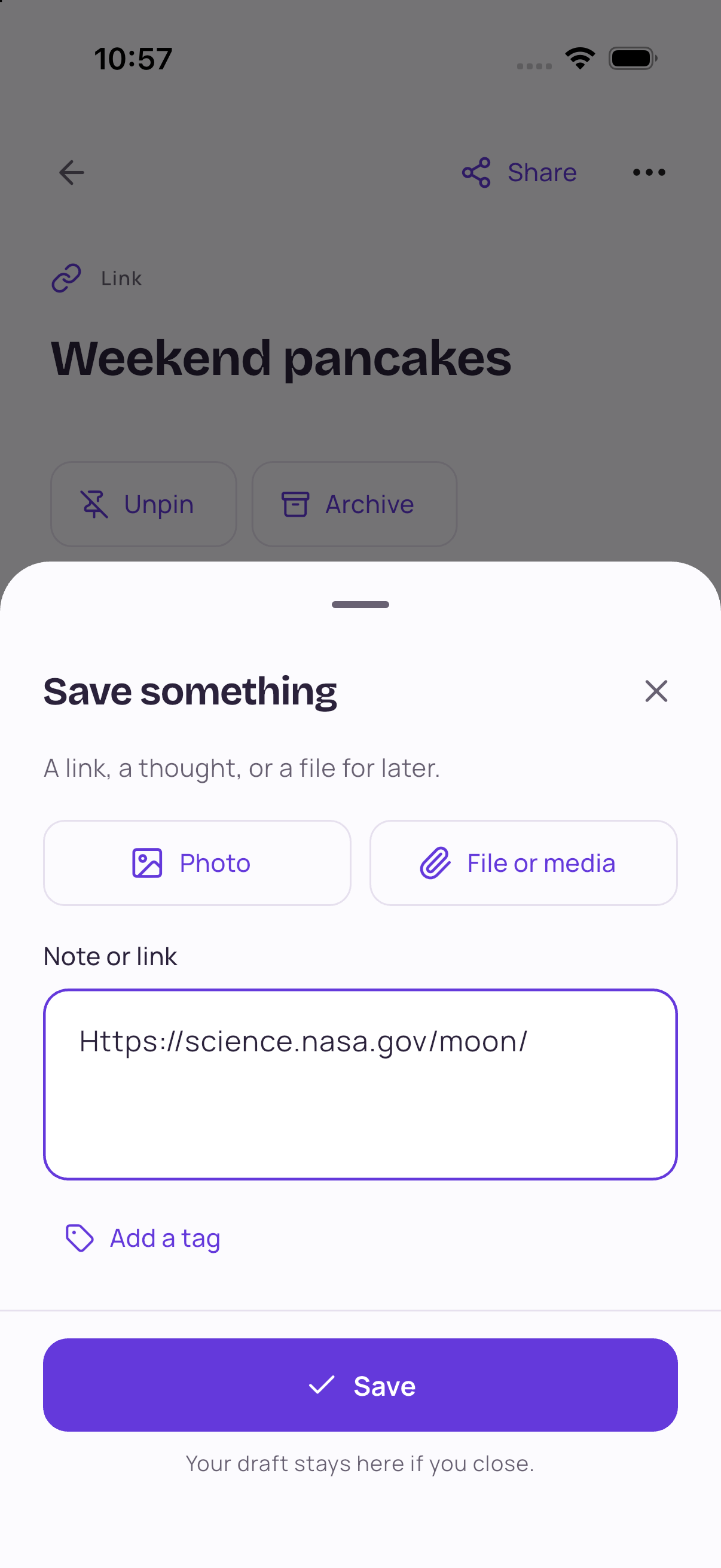
Copy the page’s URL. In CatchIt, tap Save, paste it into Note or link, then tap Save in the sheet. That’s enough to put the link in your Inbox.
You can see a NASA Moon guide being added here. There’s no folder to choose, and you can leave tags empty. The important part is keeping the address somewhere you’ll look again.
This walkthrough uses copy and paste so the steps don’t depend on the app the link came from.
3. Use a name you’ll remember
A website address tells you where a link goes. A short, familiar name can tell you why you kept it.
For a recipe, Weekend pancakes might be easier to recognize than the site’s name. Open the save, tap the three-dot menu, choose Rename save, and enter the name you want.
Make this optional. If the existing title is clear, keep it. Rename the links that would otherwise be hard to recognize; you don’t need perfect labels for everything.
4. Search for the word you remember
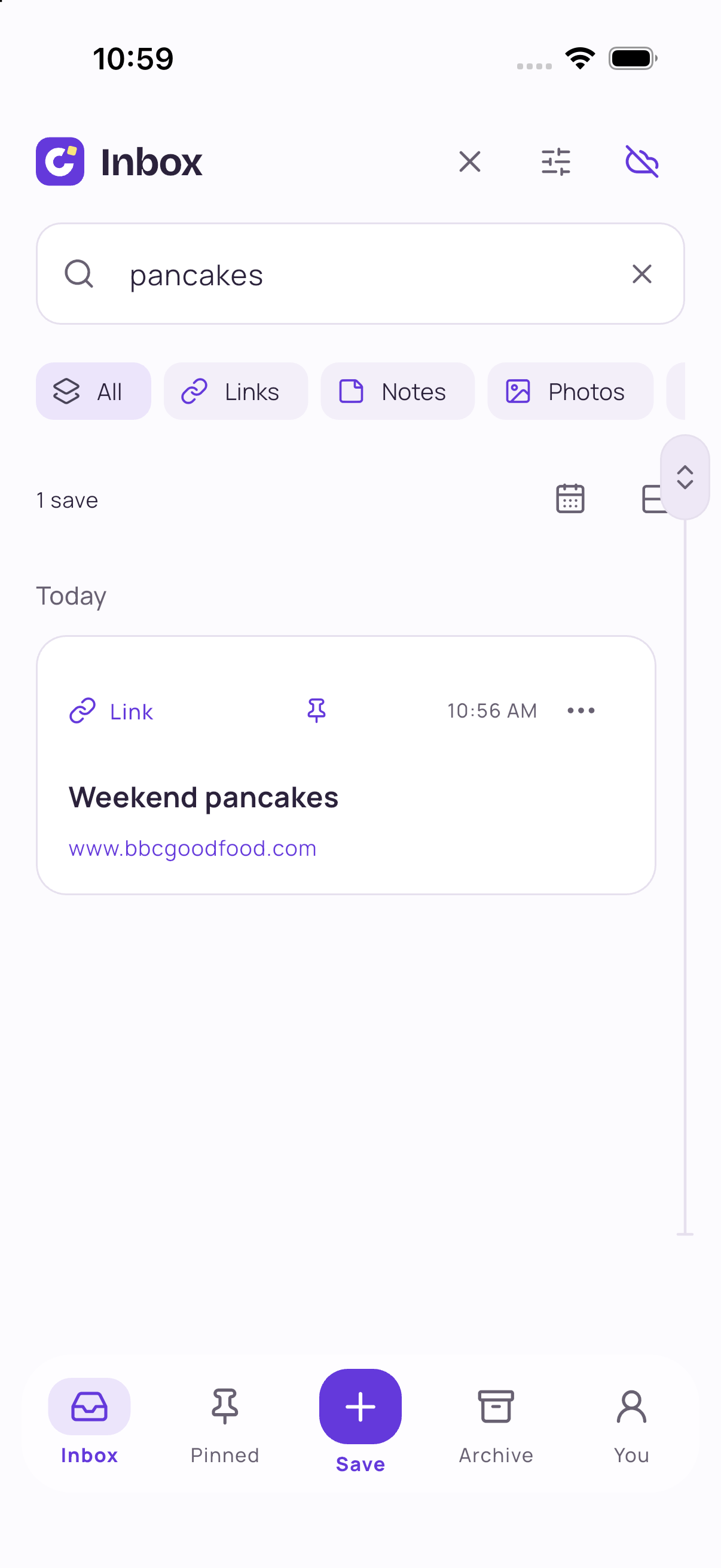
When you want the recipe back, tap the search icon in Inbox and type pancakes. In this example, the saved title brings the right link back into view.
If your library contains several kinds of saves, the Links filter can narrow what you see. If you remember roughly when you saved something, browse the timeline by save date.
A useful title gives keyword search something familiar to match. This isn’t a promise that CatchIt can search every word inside every linked webpage.
5. Open it, pin it, or share it again
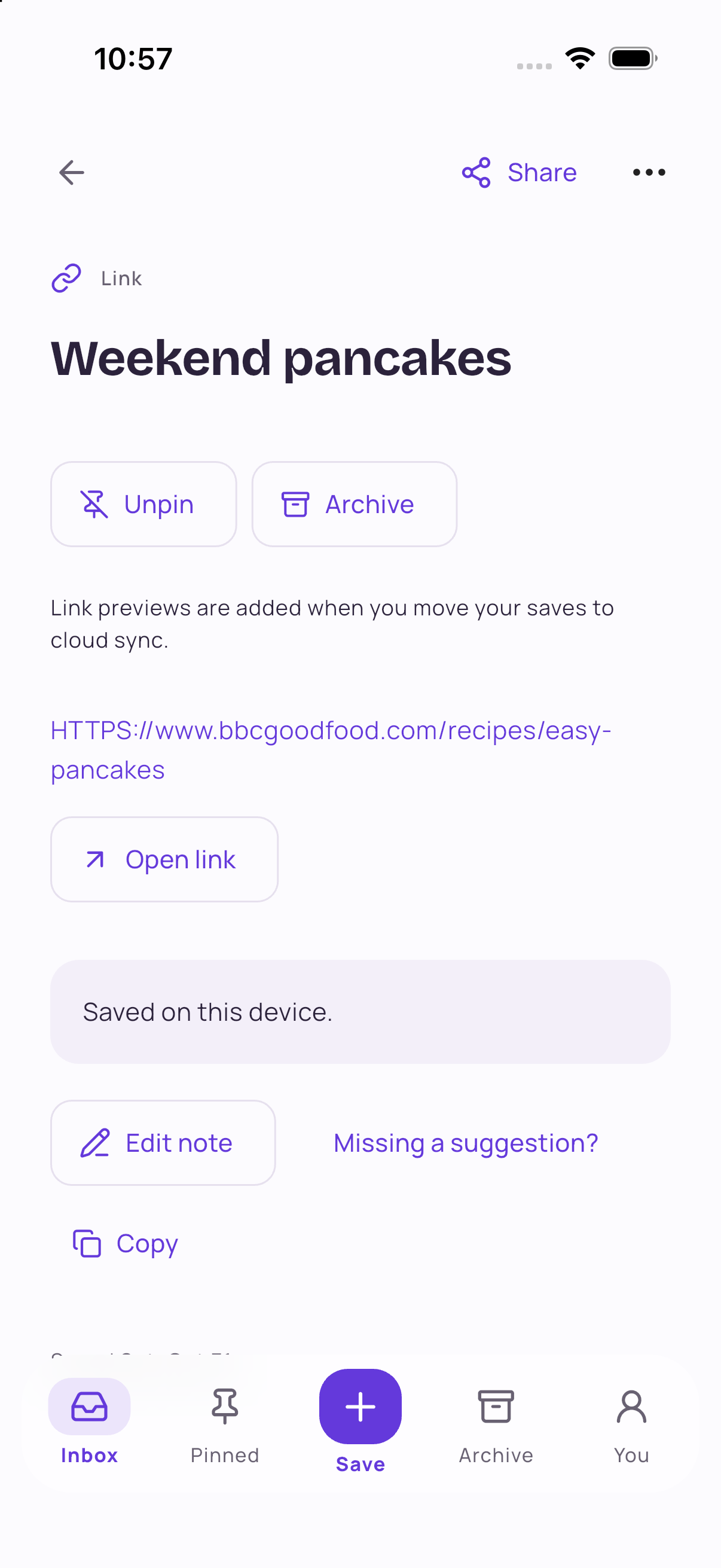
Open the saved item and choose Open link to return to the original page. For a link you use often, tap Pin; you can then return to it from the Pinned tab.
When someone asks for the same recipe, open the save and tap Share to open your device’s sharing options. Or use Copy and paste the link where you need it.
The screenshot shows the recipe after pinning, so the button now says Unpin.
Try it with the links you keep looking for
Start with three: one you want to read, one you use often, and one you keep sending to other people. Save them in one place. Next time you need one, try finding it there first.
That return trip is the part I want to make easier: keeping something useful, finding it, and using it again.